
What Is cPanel? A Beginner’s Walkthrough to Web Hosting Control Panel (2026 Guide)
If you are new to web hosting, the first technical term you will hear after buying hosting is cPanel. For beginners, web hosting can feel confusing because it involves servers, files, databases, security, and email systems. cPanel exists to remove this confusion and make website management simple.
In this complete beginner-friendly guide, you will learn what cPanel is, how it works, why it is important, and how beginners can use it confidently to manage websites without any coding or server knowledge.

This article is written in simple language, uses low-competition SEO keywords, and is designed to help beginners, bloggers, small business owners, and students understand cPanel from zero level.
What Is cPanel?
cPanel is a web-based hosting control panel that allows users to manage their web hosting account through a graphical interface instead of technical commands.
In simple words, cPanel is the control room of your website. It helps you control everything related to your hosting, such as:
- Website files
- Email accounts
- Databases
- Domains and subdomains
- Security settings
- Backups
- Software installations like WordPress
Without cPanel, managing a website would require advanced knowledge of Linux commands and server administration. With cPanel, everything is done using clicks, buttons, and icons.
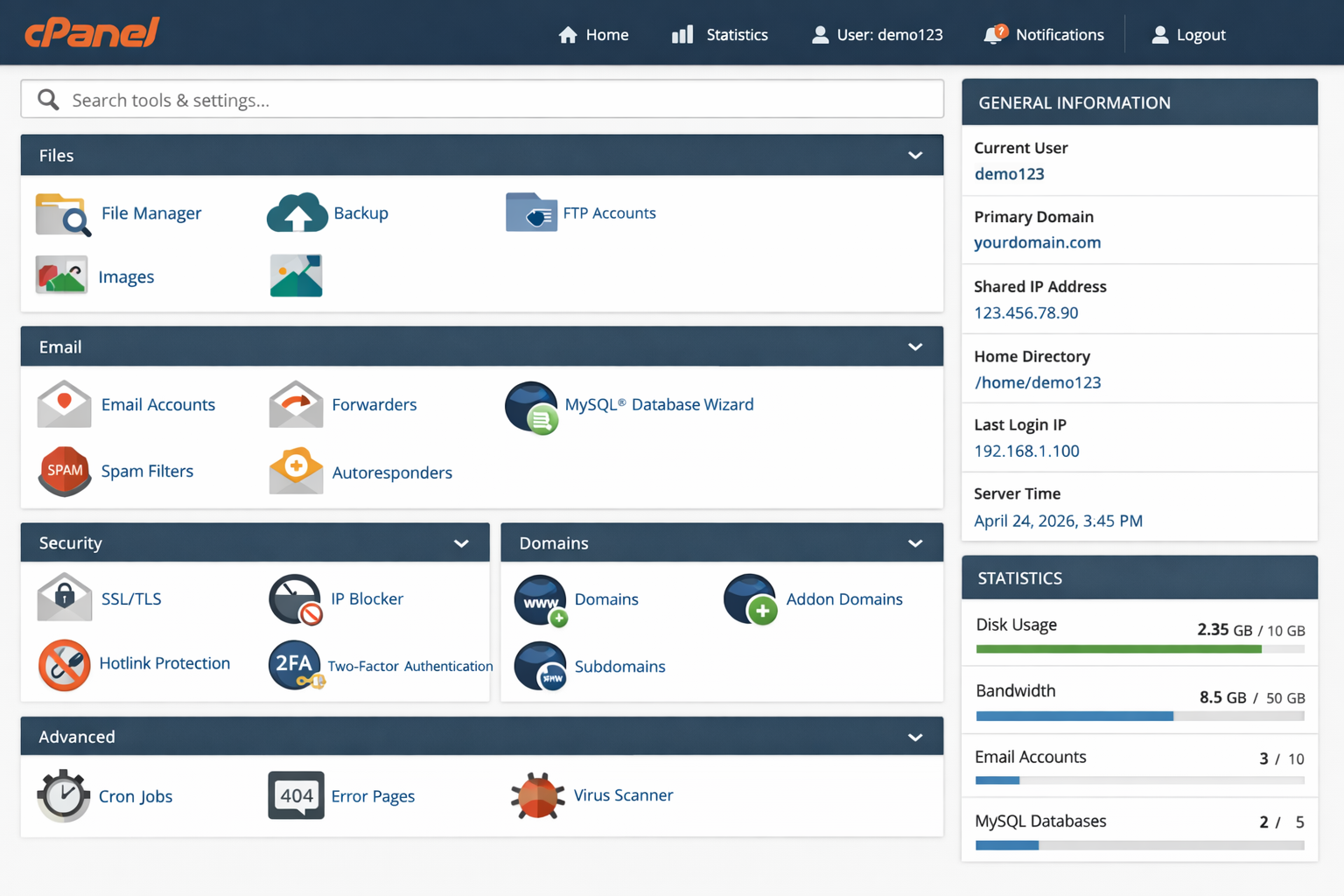
Because of its ease of use, cPanel is the most widely used control panel in shared hosting environments around the world.
What Does cPanel Stand For?
The word cPanel comes from “control panel”. It is designed to give users full control over their hosting environment without requiring technical skills.
Originally developed for Linux servers, cPanel has become the industry standard for shared and reseller hosting.
Why cPanel Is So Popular in Web Hosting
There are many control panels available today, but cPanel remains the most popular choice. The reasons are simple:
- Easy-to-use interface
- Beginner-friendly design
- Wide hosting provider support
- Strong documentation
- Regular updates
- High security standards
Most hosting companies prefer cPanel because it reduces customer support issues and makes hosting manageable for non-technical users.
Why Is cPanel Important for Beginners?
For beginners, the hardest part of creating a website is not design or content, but technical management. cPanel solves this problem.
Here is why cPanel is extremely important for beginners:
1. No Coding Knowledge Required
You do not need to learn HTML, PHP, Linux commands, or server configuration. cPanel handles everything through a graphical interface.
2. All Tools in One Place
cPanel combines file management, email management, databases, domains, security, and backups into one dashboard.
3. Saves Time and Prevents Errors
Instead of manually configuring servers, cPanel automates tasks and reduces the chances of mistakes.
4. Ideal for First Websites
If you are launching your first blog, business website, or portfolio, cPanel makes the journey smooth and stress-free.
Who Should Use cPanel?
cPanel is suitable for a wide range of users, especially:
- Beginners starting their first website
- Bloggers and content creators
- Small business owners
- Freelancers and agencies
- Students learning web hosting
- WordPress users
If you fall into any of these categories, using cPanel-based hosting will make your work much easier.
History of cPanel: How It Evolved
Understanding the history of cPanel helps you understand why it is so stable and trusted today.
Early Beginnings
cPanel was first released in 1996 by John Nick Koston. At that time, web hosting was extremely technical and required command-line access.
cPanel introduced a visual interface that allowed hosting users to manage websites without touching the server directly.
Growth and Industry Adoption
As shared hosting became popular, cPanel quickly became the preferred control panel for hosting providers. Its simplicity reduced customer support costs and improved user satisfaction.
Modern cPanel
Today, cPanel supports modern technologies like:
- AutoSSL
- PHP version switching
- One-click app installers
- Advanced security features
- Cloud and VPS compatibility
Even in 2026, cPanel continues to be actively developed and updated.
How Does cPanel Work?
To understand how cPanel works, let’s break it down into simple steps.
Step 1: Hosting Provider Installs cPanel
Your hosting company installs cPanel on their server and connects it to your hosting account.
Step 2: You Access cPanel via Browser
You log in to cPanel using your browser through a secure URL like:
https://yourdomain.com/cpanel
Step 3: cPanel Communicates with the Server
When you click a button in cPanel, it sends instructions to the server in the background. You don’t see the technical part — cPanel handles it for you.
This design makes cPanel powerful yet beginner-friendly.
Is cPanel the Same as Web Hosting?
No. This is a common beginner mistake.
- Web hosting is the service that stores your website files on a server.
- cPanel is the tool that helps you manage that hosting.
You can have hosting without cPanel, but managing it will be much harder.
Types of Hosting That Use cPanel
cPanel is commonly used with:
- Shared hosting
- Reseller hosting
- VPS hosting (with WHM)
- Dedicated servers
It is most popular in shared hosting, where beginners need simplicity.
cPanel vs Custom Hosting Dashboards
Some hosting companies offer custom dashboards instead of cPanel. While these dashboards may look modern, they often lack flexibility.
cPanel offers:
- Standardized interface across hosts
- Better documentation
- More tutorials online
- Community support
This is why many users still prefer cPanel over custom panels.
Is cPanel Free?
No, cPanel is not free software. It requires a paid license.
However, as a user, you usually don’t pay for cPanel separately. Hosting companies include the cost in their hosting plans.
This means you get cPanel access without worrying about licensing.
Is cPanel Safe to Use?
Yes, cPanel is considered very safe when used correctly.
It includes built-in security features such as:
- SSL management
- Password protection
- IP blocking
- Two-factor authentication
Most security issues occur due to weak passwords or outdated software, not because of cPanel itself.
Advantages of Using cPanel
Here are the major advantages that make cPanel beginner-friendly:
- Simple graphical interface
- Easy file management
- Quick WordPress installation
- Professional email setup
- Automatic backups
- Wide hosting compatibility
Limitations of cPanel
While cPanel is excellent, it has a few limitations:
- Paid licensing
- Consumes server resources
- Limited customization
Despite these limitations, cPanel remains the best choice for beginners.
cPanel Terminology Beginners Should Know
Before moving further, here are common terms you’ll see inside cPanel:
- public_html – Main website folder
- Add-on Domain – Additional website
- Subdomain – Section of a website
- MySQL – Database system
- AutoSSL – Automatic SSL installer
Understanding these terms will make cPanel easier to use.
What You Will Learn in the Next Parts
In the next parts of this guide, you will learn:
- Complete cPanel dashboard walkthrough
- Files, databases, email, and domain management
- WordPress installation step-by-step
- Security and backup configuration
- SEO optimization using cPanel
- Common errors and fixes
This guide will take you from beginner to confident cPanel user.
Understanding the cPanel Dashboard in Detail
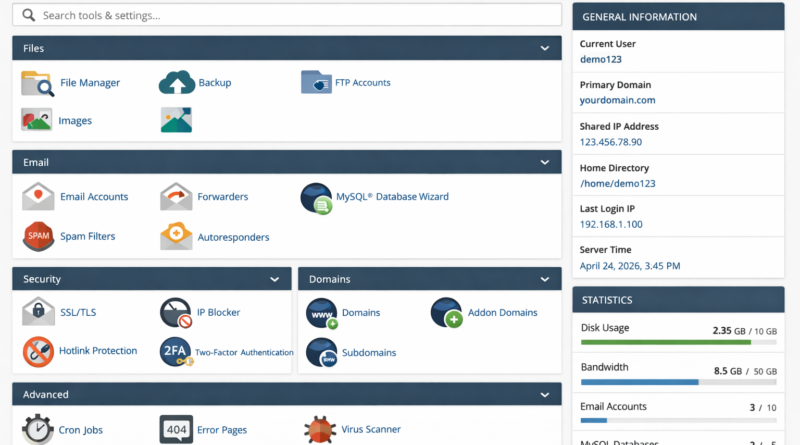
Once you log in to cPanel, the first thing you see is the cPanel dashboard. For beginners, this dashboard may look overwhelming at first because it contains many icons and sections. However, once you understand how it is structured, managing your hosting becomes very easy.
The cPanel dashboard is designed to group similar tools together so users can quickly find what they need. Every icon represents a specific function related to your hosting account.
Most hosting providers use a standard cPanel layout, which means once you learn it on one host, you can easily use it on another.
Main Sections of the cPanel Dashboard
The cPanel dashboard is usually divided into the following main sections:
- Files
- Databases
- Domains
- Metrics
- Security
- Software
- Advanced
Each section contains tools that perform related tasks. Let’s explore them one by one.
Files Section: Managing Website Files in cPanel
The Files section is one of the most important areas of cPanel. It allows you to manage all files related to your website.
Your website files include HTML, CSS, JavaScript, images, themes, plugins, and configuration files. All these files are stored on the hosting server.
File Manager Explained
The File Manager is the most commonly used tool in the Files section. It allows you to upload, edit, delete, move, and organize files directly from your browser.
What Is public_html?
The public_html folder is the root directory of your website. Any file placed inside this folder becomes accessible on the internet.
For example:
public_html/index.html→ Homepagepublic_html/wp-admin→ WordPress admin
If your website is not loading, checking the public_html folder is always the first step.
Uploading Files Using File Manager
Uploading files in cPanel is very simple and does not require FTP software.
Step-by-Step File Upload
- Open File Manager
- Navigate to public_html
- Click the Upload button
- Select files or ZIP archive
- Wait for upload to complete
If you upload a ZIP file, you can right-click and extract it directly in cPanel.
Disk Usage Tool
The Disk Usage tool shows how much storage space your files are using. This is important for managing hosting limits.
You can identify large folders and clean unnecessary files to free space.
To understand storage limits better, read this guide: Disk Space vs Bandwidth Hosting Guide
FTP Accounts in cPanel
FTP (File Transfer Protocol) allows you to upload files using software like FileZilla.
In cPanel, you can:
- Create FTP accounts
- Limit folder access
- Set storage quotas
This is useful if you work with developers or team members.
Email Section: Creating and Managing Email Accounts
The Email section in cPanel allows you to create professional email addresses using your domain name.
For example:
- info@yourdomain.com
- support@yourdomain.com
- contact@yourdomain.com
Creating an Email Account in cPanel
Creating email accounts is one of the biggest advantages of cPanel hosting.
Steps to Create an Email Account
- Open Email Accounts
- Click Create
- Choose username
- Set a strong password
- Assign mailbox storage
- Click Create
You can create multiple email accounts depending on your hosting plan.
Webmail Access
cPanel provides built-in webmail clients such as:
- Roundcube
- Horde
- SquirrelMail
You can access webmail by visiting:
https://yourdomain.com/webmail
This allows you to check emails from any browser without configuring an email app.
Email Forwarders and Filters
Email forwarders allow you to forward emails to another address, such as Gmail.
Email filters help block spam and organize incoming emails automatically.
Databases Section: Managing Website Data
The Databases section is critical for dynamic websites such as WordPress.
Databases store content, user data, settings, and configurations.
MySQL Databases Explained
MySQL is the most commonly used database system in cPanel hosting.
Using the MySQL Databases tool, you can:
- Create new databases
- Create database users
- Assign privileges
- Delete databases
Creating a Database Using MySQL Database Wizard
The Database Wizard simplifies the entire process.
Step-by-Step Database Creation
- Open MySQL Database Wizard
- Create a database name
- Create a database user
- Set a strong password
- Assign all privileges
phpMyAdmin Explained
phpMyAdmin is a web-based database management tool.
It allows you to:
- View database tables
- Edit content
- Import and export databases
- Run SQL queries
Beginners should use phpMyAdmin carefully, as incorrect changes can break a website.
Domains Section: Managing Domains and Subdomains
The Domains section controls how your domains are connected to your hosting.
Add-on Domains
An add-on domain allows you to host multiple websites on one hosting account.
Each add-on domain has its own folder inside public_html.
Subdomains Explained
A subdomain is a child domain of your main domain.
Examples:
- blog.yourdomain.com
- shop.yourdomain.com
Subdomains are useful for organizing content or creating separate sections.
Redirects
Redirects send visitors from one URL to another.
This is useful for:
- Changing domain names
- Fixing broken links
- SEO optimization
Software Section: Installing Applications in cPanel
The Software section is where cPanel truly shines for beginners.
It allows one-click installation of popular applications.
Softaculous App Installer
Softaculous is an auto-installer that supports hundreds of applications.
Popular installations include:
- WordPress
- Joomla
- Drupal
- Magento
How to Install WordPress Using cPanel
WordPress is the most popular CMS in the world, and cPanel makes installing it extremely easy.
Step-by-Step WordPress Installation
- Open Softaculous
- Select WordPress
- Click Install
- Select domain
- Set admin username and password
- Click Install
Within minutes, your WordPress website will be live.
WordPress File Structure in cPanel
After installation, WordPress files appear inside:
public_html/wp-content
This folder contains themes, plugins, and uploads.
What You Will Learn in Part-C
In the final part of this guide, you will learn:
- Advanced cPanel security features
- How to enable SSL properly
- SEO optimization using cPanel settings
- Common cPanel errors and fixes
- Hosting comparisons using cPanel
- Expanded FAQs and final schema
What Is cPanel? Beginner’s Walkthrough to Web Hosting Control Panel
cPanel is the most widely used web hosting control panel in the world. If you are new to web hosting, managing servers, files, databases, emails, and security can feel confusing and overwhelming. cPanel exists to remove this complexity and give beginners full control over their hosting environment using a simple, visual interface.
This complete guide explains what cPanel is, how it works, why it is important, and how beginners can use it step by step. The article is written in plain language, optimized for low-competition SEO keywords, and designed to rank for long-tail Google searches.
What Is cPanel?
cPanel is a web-based hosting control panel that allows users to manage their hosting account without needing technical knowledge. Instead of using command-line instructions, cPanel provides a graphical interface where everything is managed using icons and menus.
In simple words, cPanel is the control room of your website.
Using cPanel, you can:
- Upload and manage website files
- Create email accounts
- Install WordPress
- Manage databases
- Add domains and subdomains
- Enable SSL certificates
- Create backups

Why Is cPanel Important for Beginners?
Beginners struggle most with the technical side of hosting. cPanel solves this problem by simplifying every task.
- No coding required
- Everything in one dashboard
- Lower risk of mistakes
- Faster website setup
History of cPanel
cPanel was first released in 1996. At that time, web hosting required Linux command-line access. cPanel introduced a visual control panel that changed the hosting industry forever.
As shared hosting grew, cPanel became the industry standard because it reduced support tickets and made hosting accessible to non-technical users.
Today, cPanel supports modern hosting features such as cloud servers, AutoSSL, PHP version control, and one-click app installations.
How Does cPanel Work?
Your hosting provider installs cPanel on their server. You access it through your browser using:
https://yourdomain.com/cpanel
Every action you perform in cPanel sends instructions to the server in the background. You never need to see or understand the technical commands.
Understanding the cPanel Dashboard
The cPanel dashboard is divided into logical sections:
- Files
- Databases
- Domains
- Security
- Software
Once you learn one cPanel layout, you can use it on almost any hosting provider.
Files Management in cPanel
The Files section allows you to manage all website files.
The most important folder is:
public_html
This is where your website lives.
You can upload ZIP files, extract them, edit files, and manage permissions directly in File Manager.
Email Management in cPanel
cPanel allows you to create professional domain-based emails.
- info@yourdomain.com
- support@yourdomain.com
You can access emails via webmail or connect them to Gmail and Outlook.
Database Management in cPanel
Databases store website content and settings. WordPress uses MySQL databases.
cPanel provides:
- MySQL Database Wizard
- phpMyAdmin
These tools allow beginners to manage databases safely.
Domain Management in cPanel
You can manage multiple domains from one hosting account.
- Add-on domains
- Subdomains
- Redirects
Learn hosting basics here: What Is Web Hosting & Types Explained
How to Install WordPress Using cPanel
cPanel includes Softaculous for one-click WordPress installation.
- Open Softaculous
- Select WordPress
- Click Install
- Set admin credentials
Advanced cPanel Security Features
cPanel provides strong built-in security tools:
- SSL/TLS Manager
- IP Blocker
- Hotlink Protection
- Password-protected directories
- Two-factor authentication
How to Enable SSL in cPanel
Most hosts offer free SSL via AutoSSL.
- Open SSL/TLS Status
- Select domain
- Run AutoSSL
Backup & Restore Options
Backups protect your website from data loss.
- Full backups
- Partial backups
- Database backups
SEO Benefits of Using cPanel
cPanel supports technical SEO by enabling:
- HTTPS (SSL)
- Fast WordPress deployment
- PHP optimization
- Stable uptime
Disk Space & Bandwidth Explained
Disk space stores files. Bandwidth measures visitor data usage.
Detailed guide: Disk Space vs Bandwidth Hosting Guide
Common cPanel Errors and Fixes
- 403 Forbidden – Fix permissions
- 500 Error – Check plugins
- Database error – Verify credentials
Best cPanel Hosting Providers (2026)
Bluehost vs Hostinger
Hostinger Review 2026
Free vs Paid Web Hosting
Final Conclusion
cPanel remains the best hosting control panel for beginners in 2026. It simplifies hosting, improves security, supports SEO, and allows anyone to manage a website confidently.